Home Assistant remote access with Cloudflare Tunnel
I wanted a simple way to access Home Assistant from my phone and desktop when I am away from home. For this setup I used a Cloudflare Tunnel because it does not require opening a port on the router. If you still need to install Home Assistant, start with my Home Assistant OS on Proxmox guide.
This guide assumes that you already have a domain managed by Cloudflare and that your Home Assistant install supports add-ons. In practice, that means Home Assistant OS or another supported supervised setup. You can read more in the official Home Assistant installation guide.
What you need
- A Home Assistant instance with add-ons available
- A domain name managed through Cloudflare
- Access to your Home Assistant administrator account
Step 1: Add-on apps
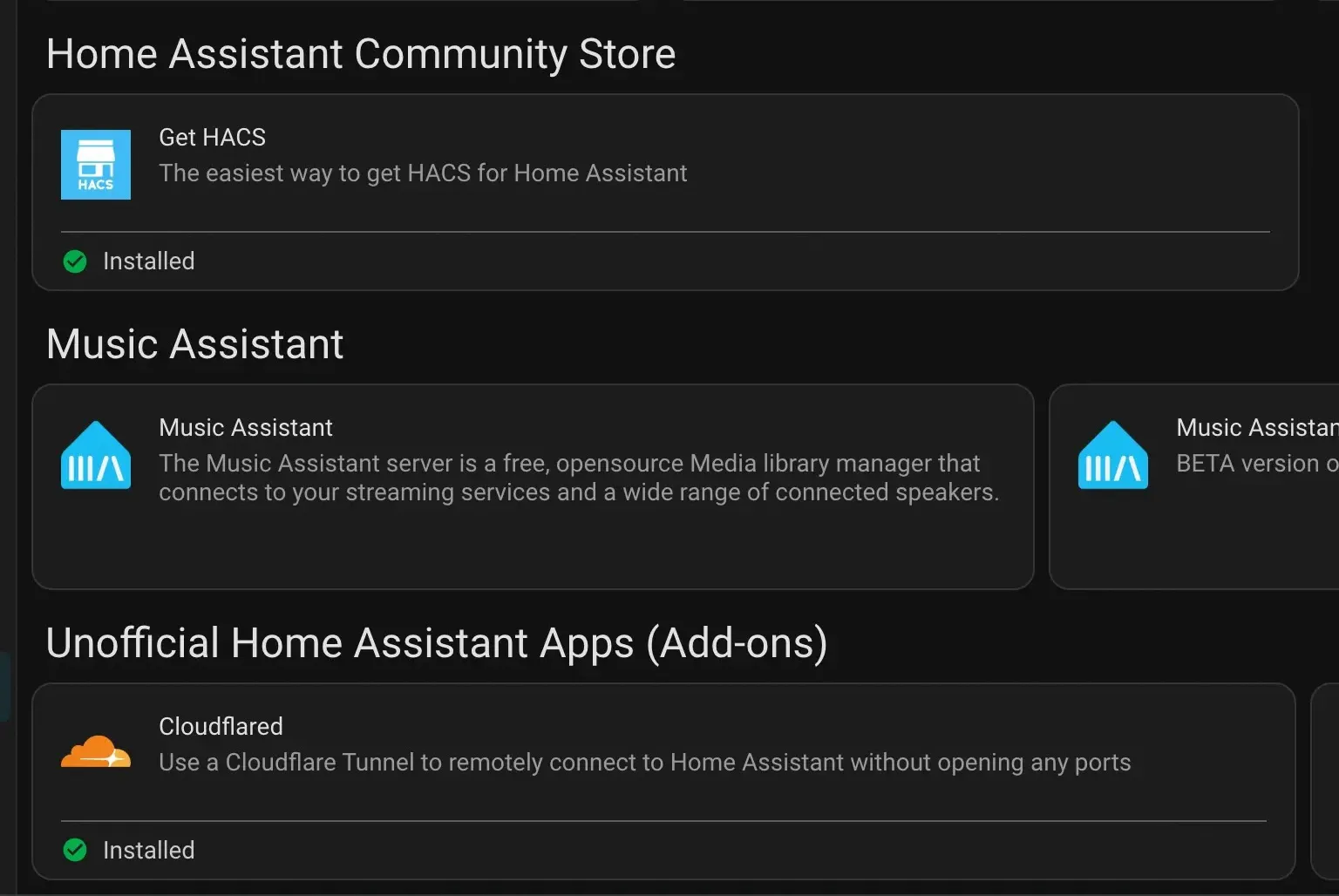
First, add the repository that contains the Cloudflared add-on. In Home Assistant, go to Settings -> Apps -> Install App.
Open the three-dot menu in the top-right corner, select Repositories -> Add, and add a new repository.
Use this repository URL:https://github.com/homeassistant-apps/repository
After the repository is added, Cloudflared should appear in the add-on store. Install it, but do not start it yet.
Step 2: Cloudflared configuration
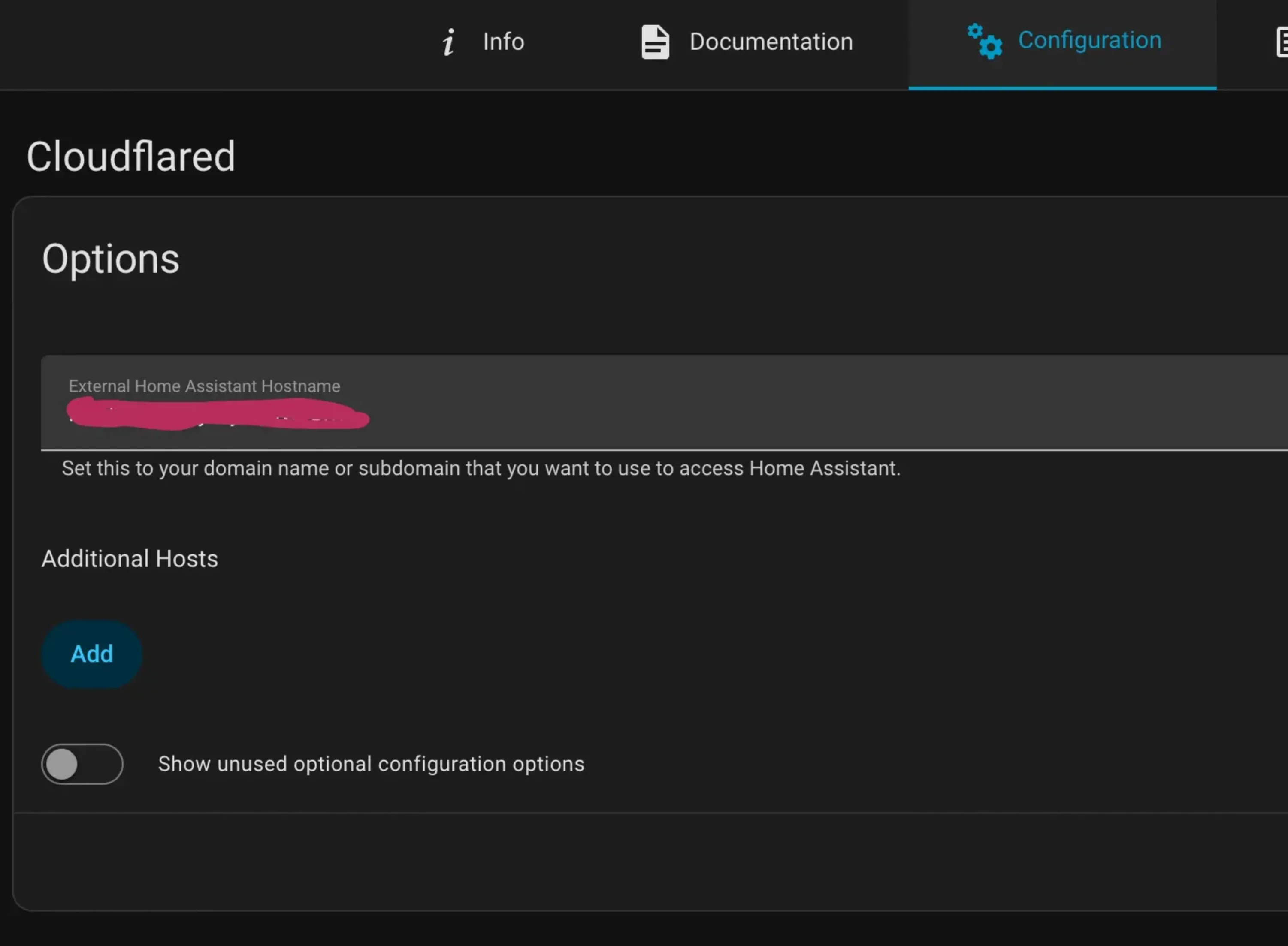
Before starting the add-on, open the Configuration tab and enter the hostname that you want to use for remote access. For example, if your domain is greatdomain.com, you could use haos.greatdomain.com.
Now start the add-on and switch to the Logs tab. You should see a Cloudflare login URL. Copy that URL and open it in your browser.
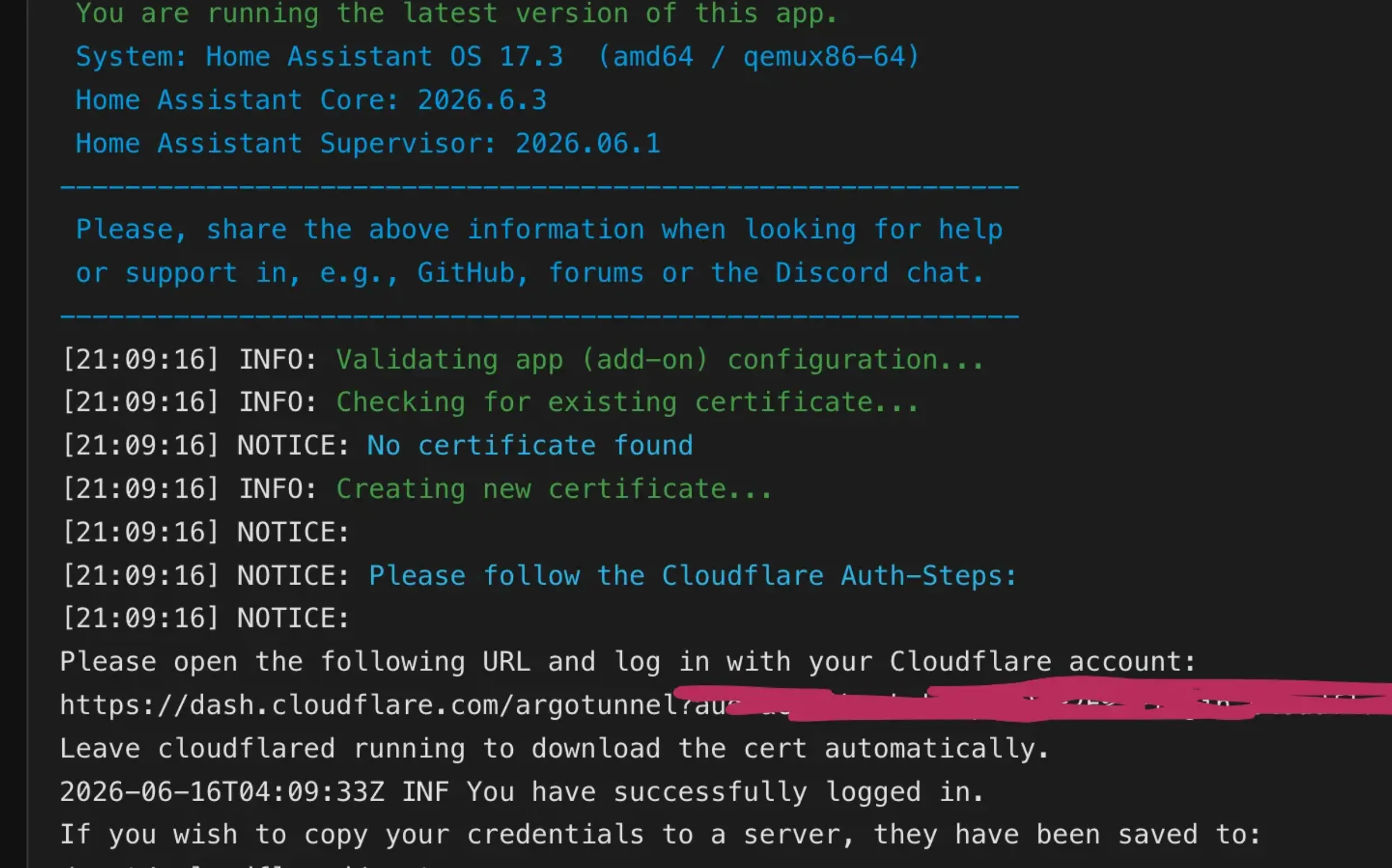
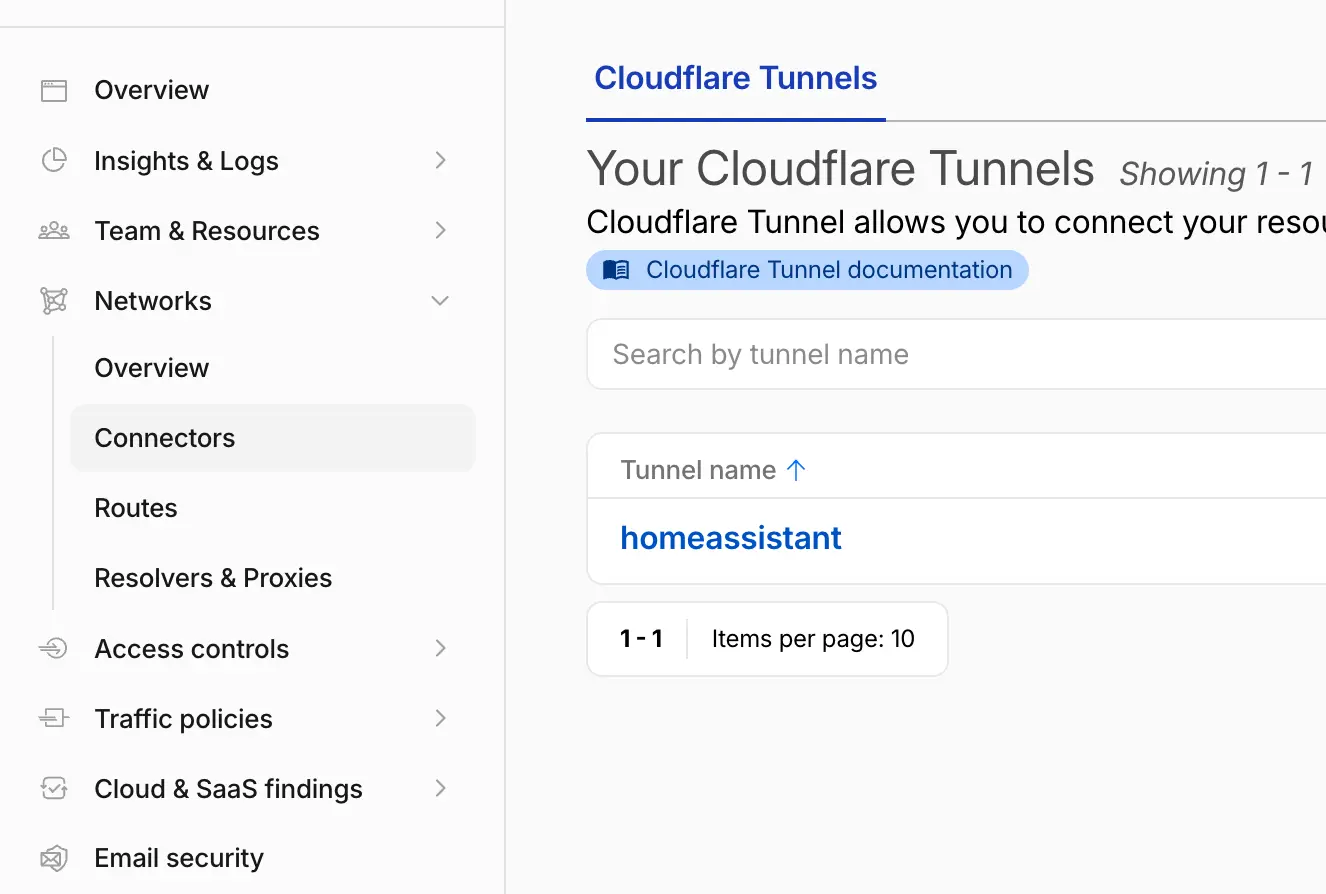
After you sign in, Cloudflare creates the tunnel and adds the DNS record for the hostname you configured. That record points your subdomain to the tunnel, and the tunnel forwards traffic to your Home Assistant instance.
Go back to the add-on logs and confirm that the tunnel is connected to the Cloudflare network. If the log shows a connected tunnel, the Cloudflare side is ready.
Step 3: External URL
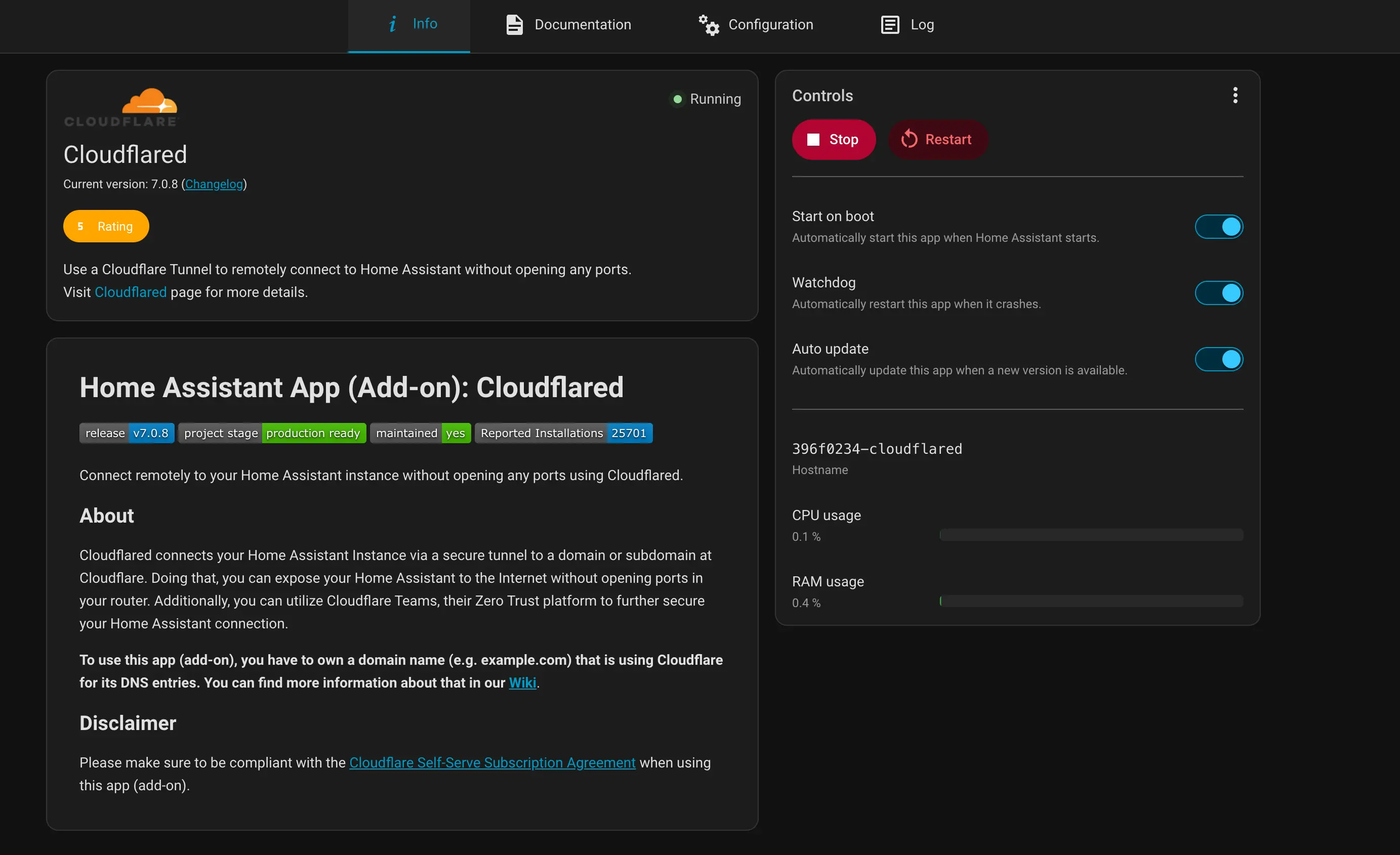
At this point, the subdomain should open your Home Assistant instance from outside your home network. Go back to the add-on Info tab and enable Start on boot and Watchdog. These options keep the tunnel running after a reboot and restart it if it stops unexpectedly.
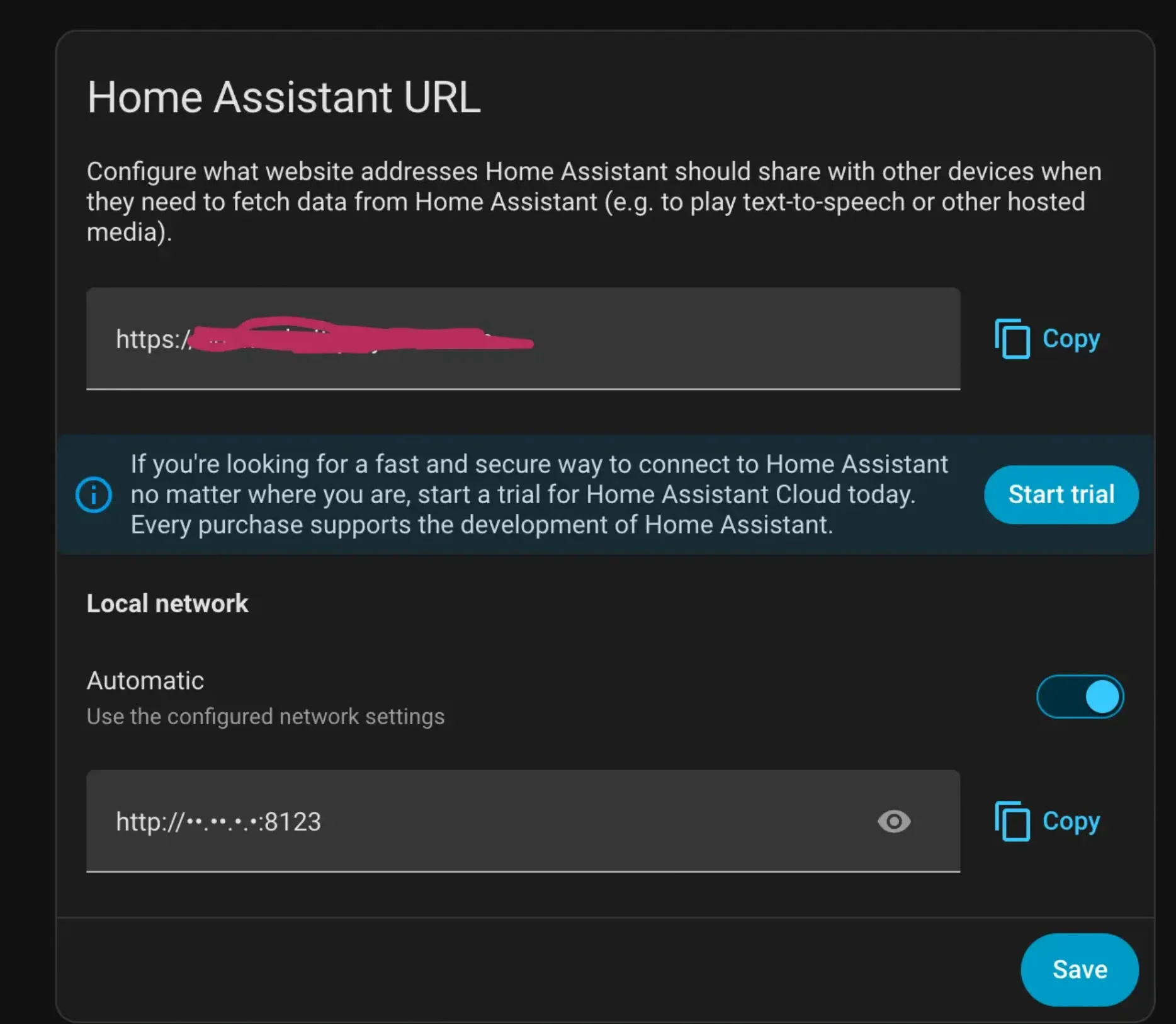
The last step is to set the external URL inside Home Assistant. Open the Network settings and use the same hostname you configured in Cloudflared. In this example, that would be haos.greatdomain.com.
Use the same external URL in the Home Assistant mobile app and desktop app. Once it is saved, remote access should work through the Cloudflare Tunnel.